Claude Skills is the latest AI tool that directs AI performance to a certain level. Anthropic was smart enough to identify one problem that developers face every day – they have to rewrite commands for repetitive tasks. Therefore, packaging it in the form of “Skills”, Claude brings a new way to store this information or instructions, so you don’t have to type it all the time.
In simple words, Claude Skills are designed to turn repetitive instructions into reusable power. Instead of cramming everything into a long notification, you can package instructions, documentation, and supporting resources into a structured module that Claude loads only when appropriate.
The result is a workflow that is consistent, efficient, and easy to maintain over time. We’ve reviewed Claude’s Skills in a detailed guide before. You can check it out to get a complete understanding of Claude Skills, how they work, and how to create one for yourself.
In this article, we’ll explore custom Skills in Claude, what they look like, and how you can create other such Skills that help you in your daily dev flow. So without further ado, let’s jump right in.
What Does a Custom Skill Look Like?
A custom skill is organized as a folder, and at a minimum, that folder should include a Skill.md file. This file usually starts with YAML frontmatter which defines the required metadata, especially the name and description of the capability. The description is very important because Claude uses it to decide when the Skill should be used. Additionally, a file can also include instructions, examples, references to other files, and declared dependencies.
More advanced skills can include additional properties such as:
- templates
- resource files
- documents
- supporting documents
This structure allows the Skill to be more than just saved information. It becomes a reusable behavioral package.
How to Create a Custom Skill: Step by Step with an Example
Let’s take a simple example and build it properly.
Let’s say you want to create a custom Skill called Meeting Summary and Action Tracker. The purpose of this Skill is to take raw meeting notes and turn them into:
- a clear summary
- important decisions
- objects of action
- owners and deadlines
- files you can export if needed
This is a great example because it shows how a repetitive task can be turned into a usable workflow instead of being handled with a long command every time.
Step 1: Decide what the Skill should do
Before creating anything, define the exact purpose of the Skill.
In this example, the Ability should:
- Read meeting notes or transcripts
- Find key discussion points
- Make decisions
- List the action items
- Avoid creating missing information
So Skill’s job is not just to “summarize the text.” Its function is to follow the specific workflow of the assembly documents.
Step 2: Create a Skill folder
Now create a Skill folder.
Example of a folder name:
MEETING-SUMMARY-ACTION-TRACKER
This folder will contain everything related to the Skill.
Inside this folder, you should create a file called Skill.md. The arrangement will look like this:
This is the main file that Claude uses to understand the Skill.
Step 3: Write the basic Skill.md file
Inside Skill.md, start with YAML frontmatter.
Example:

What this does is:
- name It gives the ability a clear topic
- definition tells Claude when this ability should be used
The description is very important because Claude uses it to determine if the Skill matches the user’s request.
Step 4: Add instructions below frontmatter
After the YAML section, write clear instructions in Markdown.
Example:
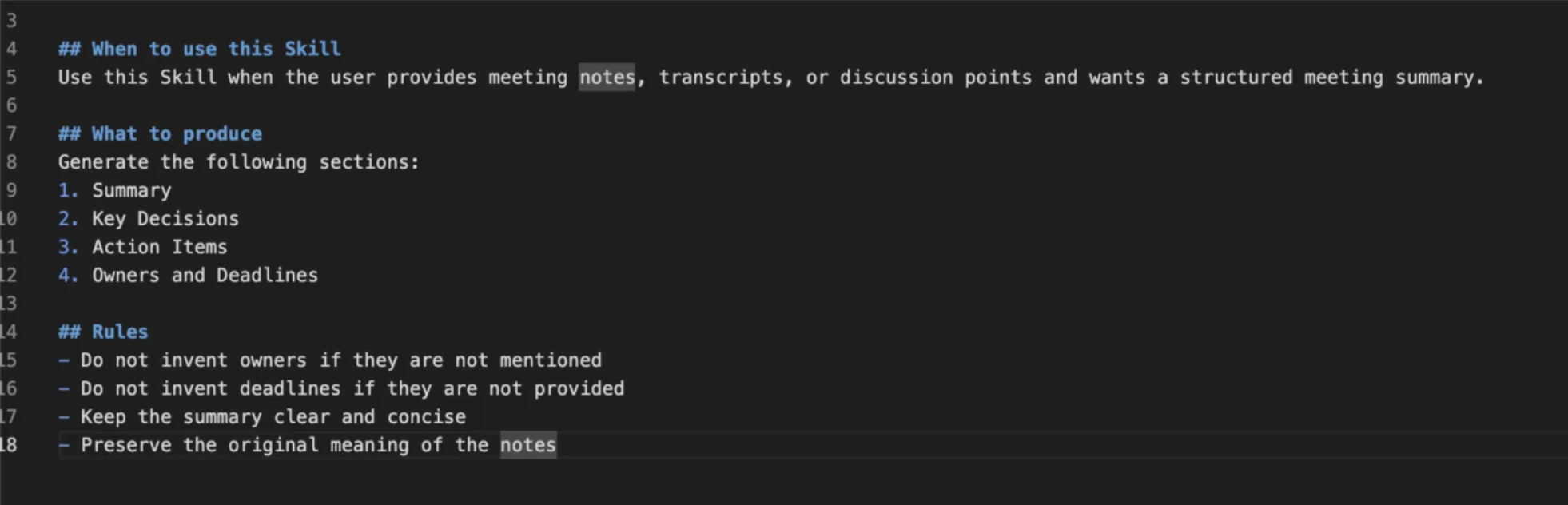
What this does is:
- tells Claude when to activate the Skill
- defines the output format
- he sets the rules for accuracy
This is where he teaches Claude how the work should be done.
Step 5: Add an instance inside the Skill
It helps to show Claude the sample input and output.
For example within Skill.md:
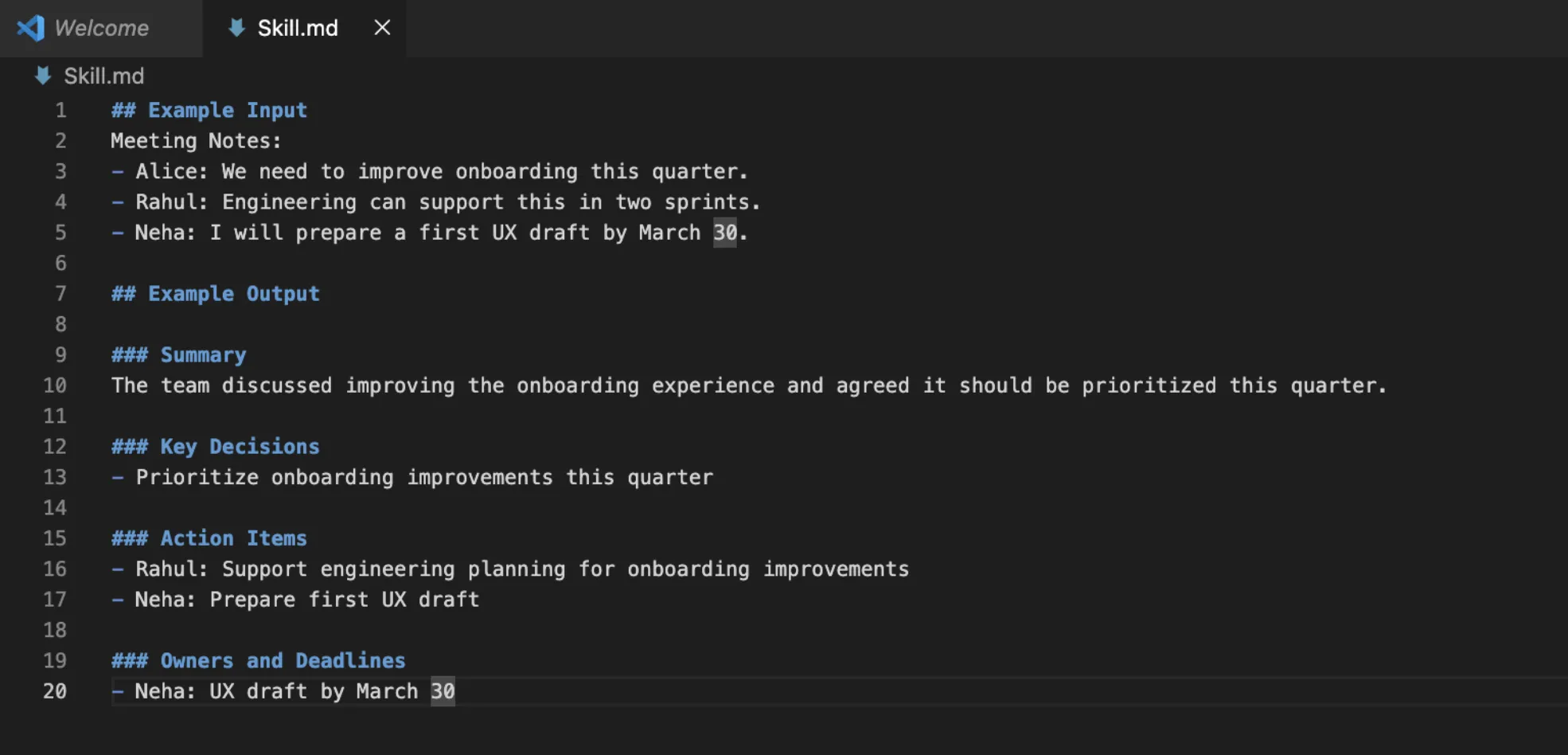
Why this helps:
- Claude understands the format well
- The ability becomes reliable
- The expected output is easy to follow
Examples make Skills stronger.
Step 6: Add supporting files if needed
If your workflow requires more detail, add supporting resources within the same folder.
For example, you can add:
- template.md for company meeting format
- rules.md for department-specific writing rules
- branding-guide.md if your output requires a corporate style
Example folder structure:

What this does is:
- keeps Skill.md short
- allows Claude to use additional references when needed
- it makes the workflow easier to maintain
This is useful if one group wants a specific layout or formatting style.
Step 7: Add scripts for advanced actions
If you want the Skill to do more than follow script instructions, you can add scripts.
For example, you can add:
- script to clean up dirty notes
- text to identify speakers
- script to extract timestamps
- a script to generate a DOCX or CSV file
Example layout:
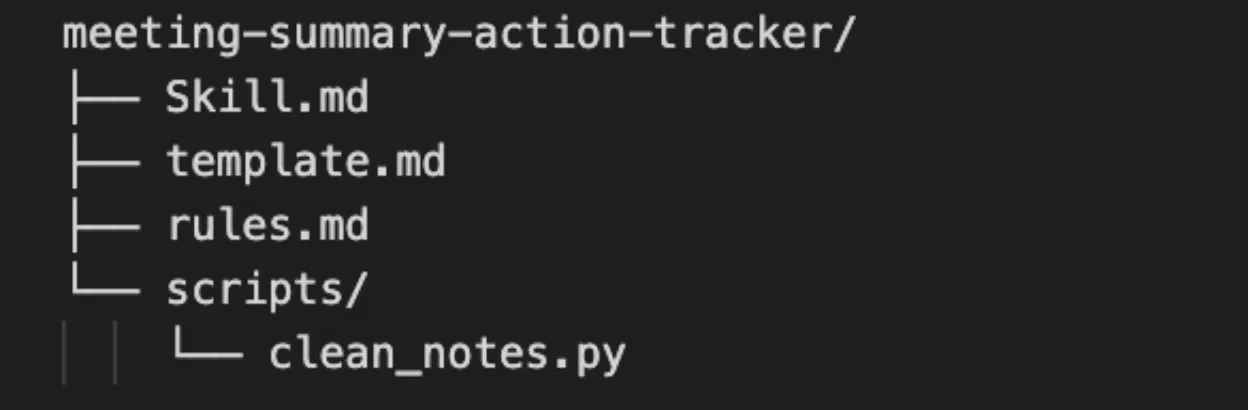
Example view of clean_notes.py:
- remove duplicate rows
- remove the filler text
- adjust the formatting
- correct the notes before summarizing
This is what makes the Skill so much more powerful than ordinary knowledge. Commands and logic are stored once and reused every time.
Step 8: Check that everything is set up correctly
Before uploading, make sure that:
- The folder name is clear
- Skill.md is here
- All additional files are in the correct location
- The instructions are easy to understand
- Examples are relevant to the purpose of the Skill
The clean layout makes the Skill easy to debug and easy for Claude to use properly.
Step 9: Zip the folder
Now compress the full Skill folder into a ZIP file.
Important:
- The Skill folder should be the root of the ZIP
- Do not place it inside additional nested folders
That’s right:

This enables loading to work properly.
Step 10: Upload and test the Skill
After creating the ZIP file, upload it to Claude.
Then test it with a real command.
An example of a test command:
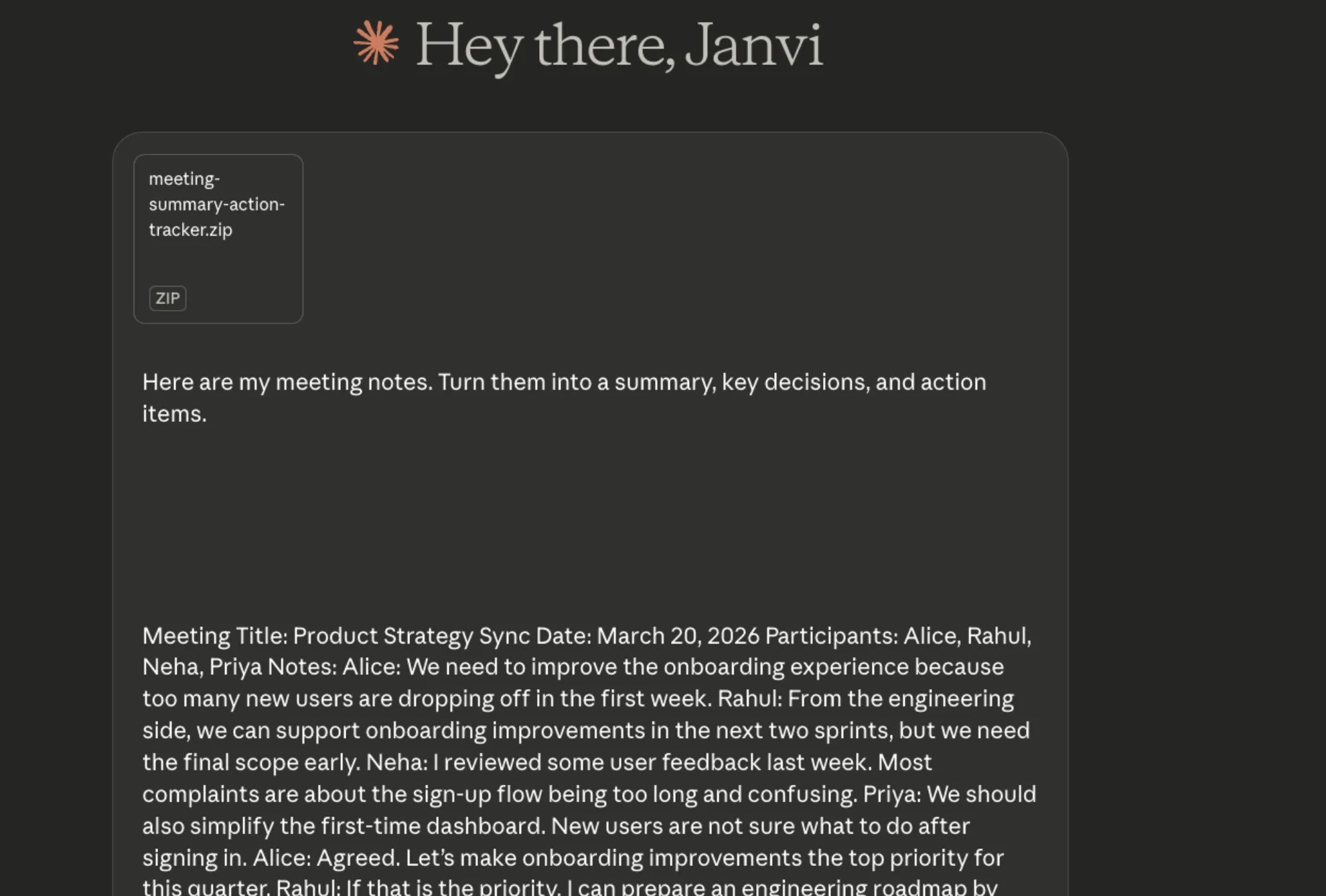
Here are my meeting notes. Turn them into a summary, key decisions, and action items.
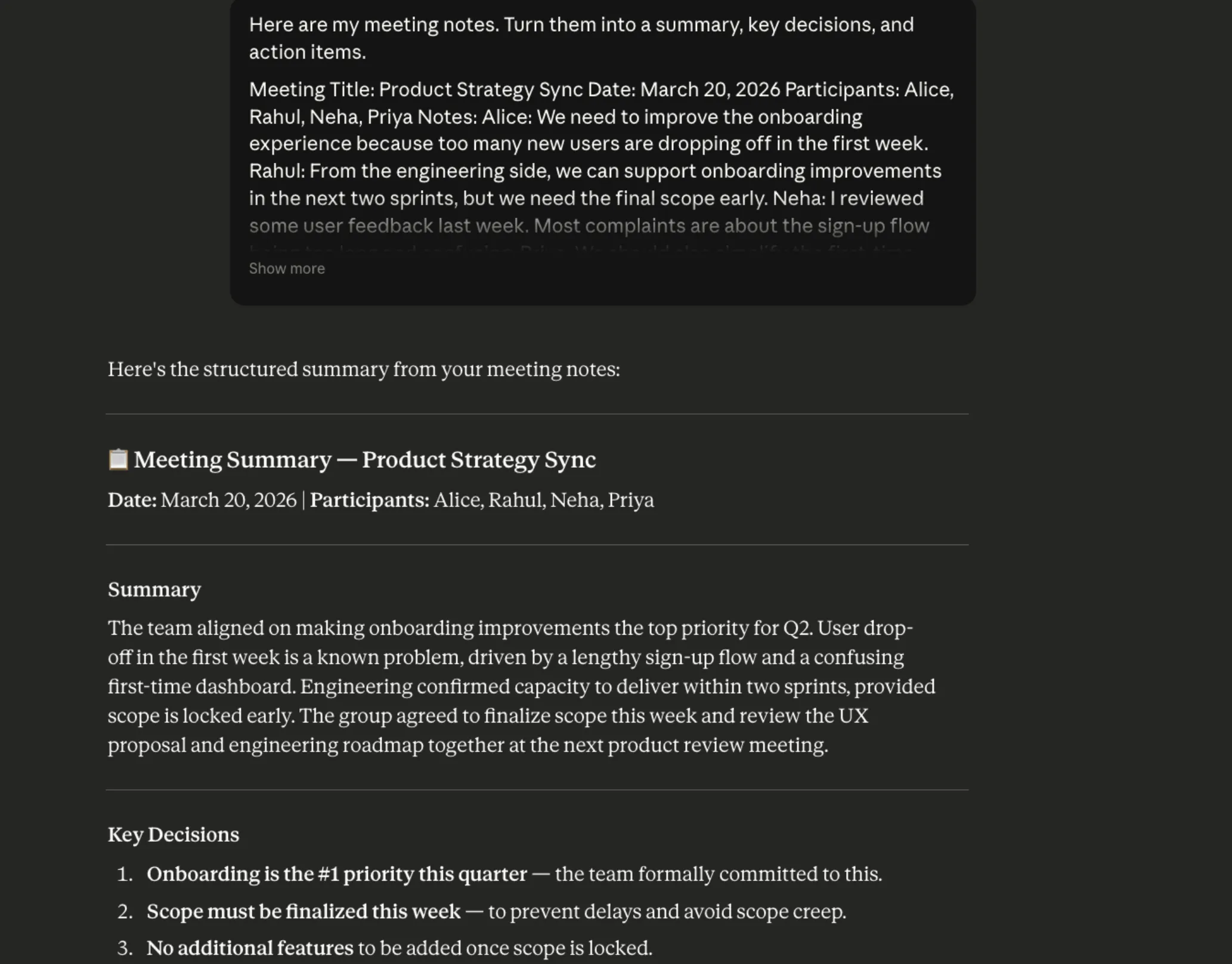
If the Skill is written correctly, Claude should recognize that this request matches the Skill description and use it automatically.
Step 11: Refine the Skill if needed
If Claude doesn’t use the Skill properly, upgrade:
- definition
- instructions
- examples
- the names of the laws
For example, if Claude misses the verbs, you can revise the instructions to say:
Always separate action items from general discussion points.
If Claude establishes deadlines, you can enforce the law:
Never create a deadline unless it is clearly stated in the notes.
Testing and refining is a normal part of building a good Skill.
GitHub Repositories Free Claude Code Skills
Besides the Skills we checked above, you can also check out the top free GitHub repositories for Claude Skills. This contains a custom set of Claude’s Anthropic Skills, Cross-Platform Agent Skills, Premium Agent Skills Collection, and the Largest Claude Skills Library. A total of 1000+ of Claude’s skills are contained in these GitHub repositories.
You can check all of these here.
How Skills Are Packaged and Used
Once the Custom Skill is ready, it is packaged as a folder, zipped, and uploaded to Claude. The ZIP should contain a Skill folder, and that folder should also include the required Skill.md file. After loading, the Skill can be activated and tested using real data. If the description and instructions are clear, Claude can recognize the task and use the Skill automatically.
That point must be emphasized. A clear definition is not just a text. It directly affects whether Claude can identify the right time to use the Skill.
Skills Across the Claude Ecosystem
Skills also help because they are not tied to a single interface. They can work across Claude, Claude Code, API workflows, and document-centric environments like Claude for Excel or Claude for PowerPoint. That means the same workflow concept can be reused in different environments, giving both individuals and organizations a consistent way to use AI in real-world tasks.
Safety and Security
Like any system that can load instructions and execute code, Skills need to be carefully reviewed. They work in a secure sandbox, and data does not persist between sessions, but risks still exist. Rapid injection, unsafe instructions, malicious packaging, and exposed secrets can all be problems if the Skill is poorly designed or comes from an untrusted source. Sensitive data, such as passwords or API keys, should never be hardcoded into Skill files. Capabilities and dependencies should always be carefully reviewed before implementation, especially in wide areas of the organization.
The conclusion
Claude Skills represents a change in the way people build with AI. Instead of repeating the same directive over and over, users can package workflows into reusable modules that Claude loads only when needed. That improves consistency, reduces clutter, and makes specialized work easier to scale for individuals, teams, and organizations.
Whether the Ability comes from Anthropic, a partner, an organization, or an individual user, the vision is the same. Explain the skill once, then let Claude use it in the right situation. That’s a model that lasts longer than endless rewrite commands.
In that sense, Skills are more than a simple feature. They mark the transition from a single notification and to the design of a structured AI workflow.

Hi, I’m Janvi, a data science enthusiast currently working at Analytics Vidhya. My journey into the world of data began with a deep curiosity about how to extract valuable insights from complex datasets.
Sign in to continue reading and enjoy content curated by experts.