
In our previous article of the Excel 101 series, we learned all about conditional logic and operators in Excel. These operators are very helpful in functions like IF, AND, OR, etc. However, there is another family of functions that are widely used by Excel users and mainly use these operators to express results. This is exactly the set of functions that we will study in this article. To name it, these functions are COUNT, COUNTIF, and all related formulas.
To give you a glimpse of how these tasks work, consider a task where you might need to scan a long sheet of data. You wouldn’t want to do this manually, of course, as it defeats the whole purpose of using Excel (you might as well make a spreadsheet instead). This is exactly where COUNT functions come in.
How? And how are they used? Everything in time, starts with a basic question…
What is the COUNT Function in Excel?
Let’s start with the easiest of the family – the COUNT function in Excel. It is used to count the number of cells in a range that contain numeric values. That’s it. No drama, no hidden twist.
If the cell contains a number, COUNT will count it as 1. If it contains text, blank words, or random words you entered, Excel will politely ignore them. It will then scan the entire range you specify to check the numbers in the same way.
COUNT syntax
For its intended purpose, the syntax of COUNT is very simple:
=COUNT(value1, [value2], [value3], ...)Multiple values here indicate that you can use the same COUNT function across multiple values, cell references, or ranges.
Let’s try this in practice by creating a new function to extract a count from a range of cells.
Writes the function COUNT
To understand how to write the COUNT function correctly, consider the following table as an example.
Suppose we want to know the number of response times included in this sheet, we can use the COUNT function as follows:
=COUNT(C2:C8)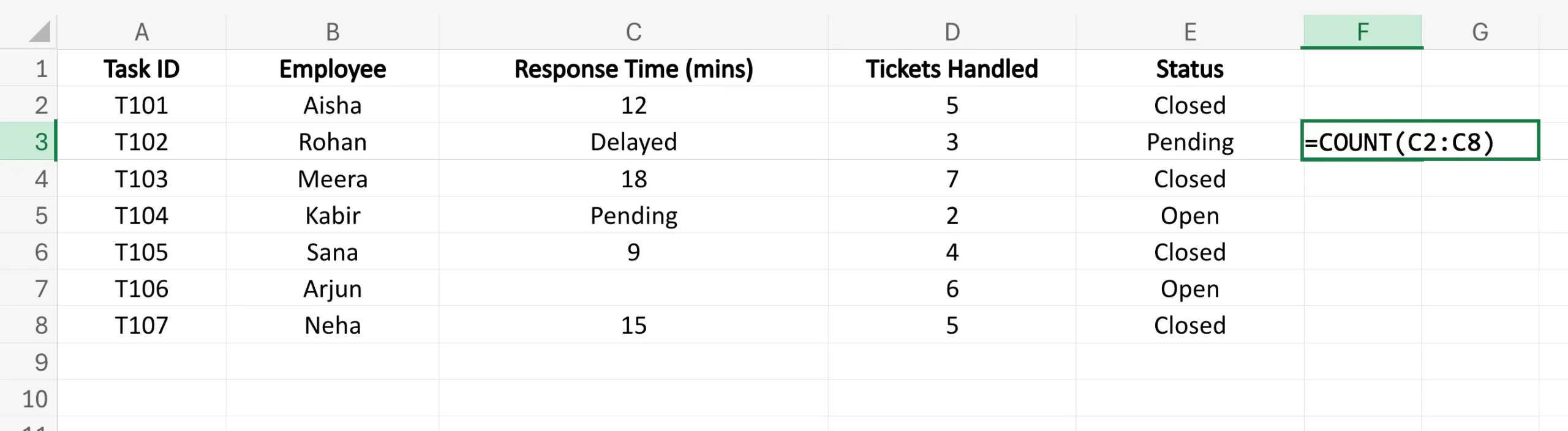
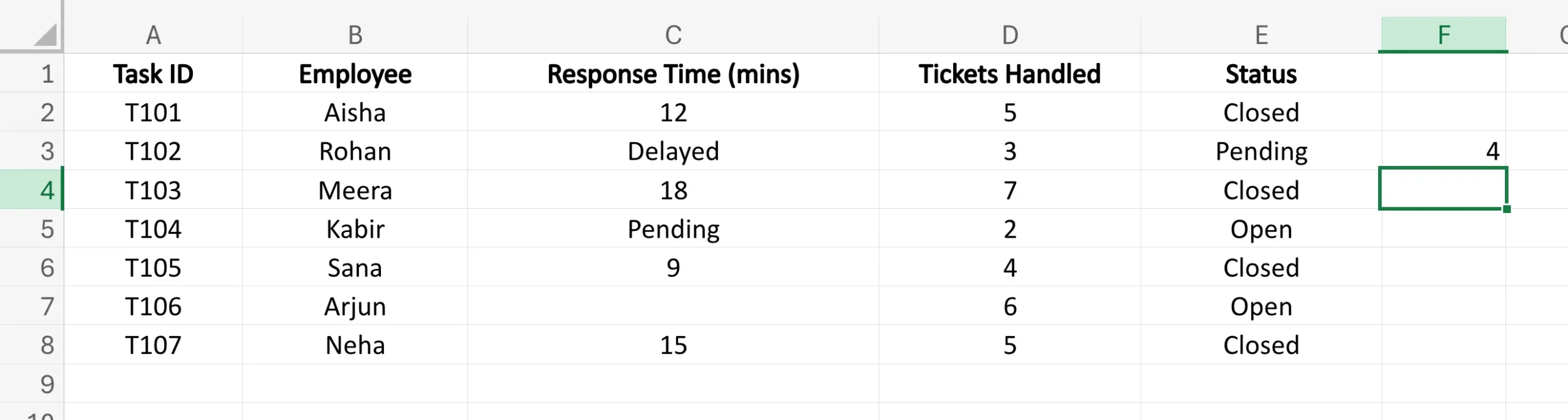
The formula counts the number of cells from C2 to C8 that contain a numeric value. That is why the answer comes out as “4”. Notice how the function ignores cells with text or blank cells and only focuses on the numbers in the numbered cells.
Now, let’s say I want to know the total number of tickets handled + the number of response time entries. I can use the COUNT function like this:
=COUNT(C2:C8, D2:D8)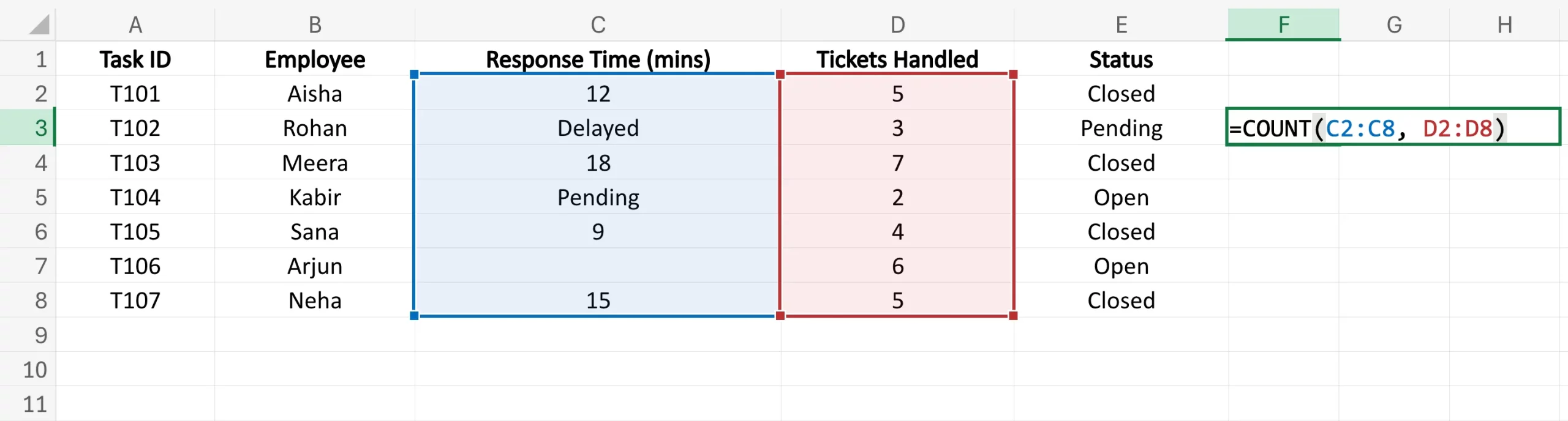
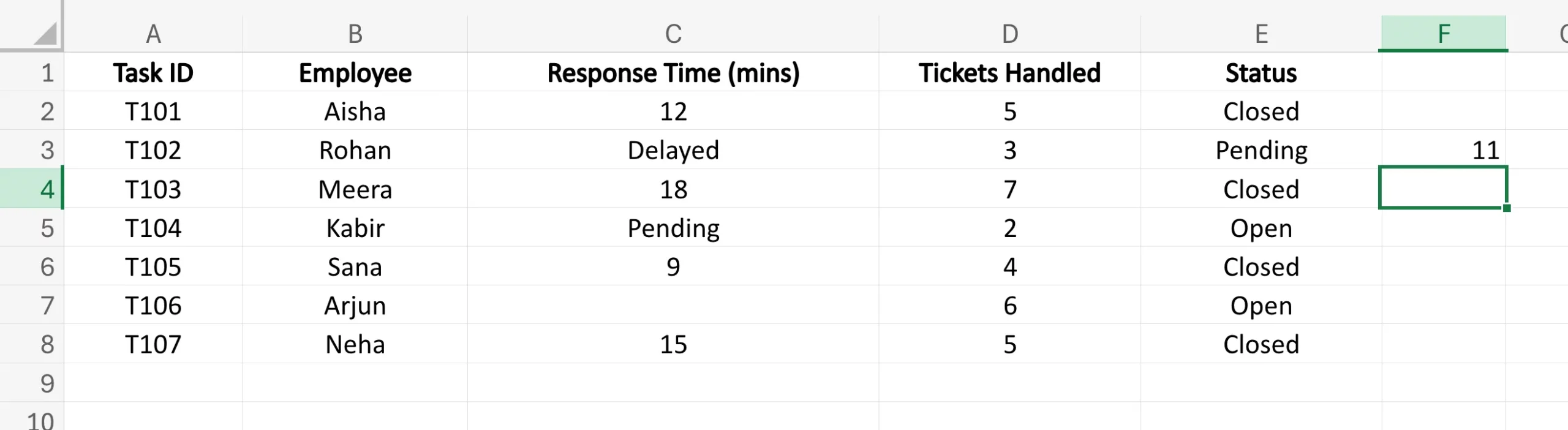
This will scan both Column A and Column C across the specified range of cells to calculate the numbers. The total number now comes out to “11”.
This is exactly how the COUNT function can be used to map numeric entries across different sets of values.
But what if there is a situation here? For example, we may want to know the number of employees at a certain response time or the number of tickets handled. This is where COUNTIF comes in.
Also read: Excel 101: Complete Guide to the VLOOKUP Function
What is the COUNTIF Function in Excel?
This is where the COUNT function gets its biggest performance advantage. While COUNT only checks whether a cell contains a number, COUNTIF does something much more useful. Counts the number of cells in a range that meet a certain condition.
In simple terms, COUNT asks, “Is this a number?”
COUNTIF asks, “Does this cell match what I’m looking for?”
That “condition” can be almost anything: a word, a number, a comparison, or a value from another cell. So if COUNT is a basic counter, COUNTIF is its less intelligent cousin that listens to commands.
COUNTIF Syntax
The syntax of COUNTIF is also not very complicated:
=COUNTIF(range, criteria)Here:
- range is the group of cells that Excel needs to scan
- criteria is a condition that tells Excel what to calculate
- This process can be:
– text value as “Closed”
– a number like 5
– condition like “> 10”
– or even a mobile reference linked to the user
At first glance, this may look worse than COUNT, but it’s still very manageable. Once you’ve written it once or twice, it stops looking like Excel wizardry and starts looking like common sense.
Writing the COUNTIF Function
Let’s use the same table again. Let’s say we want to know how many employees are marked disabled. We can write:
=COUNTIF(E2:E8, "Closed")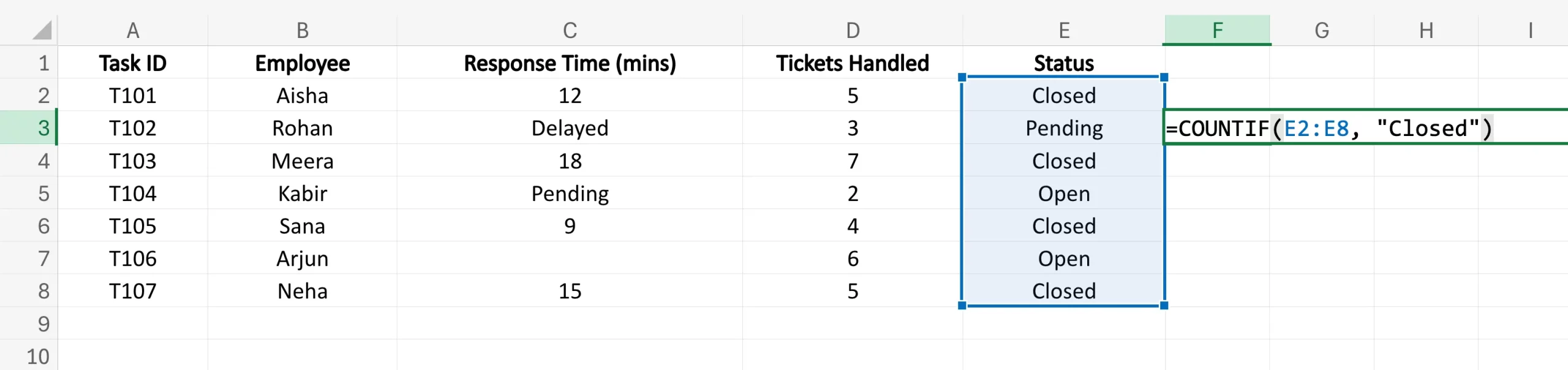
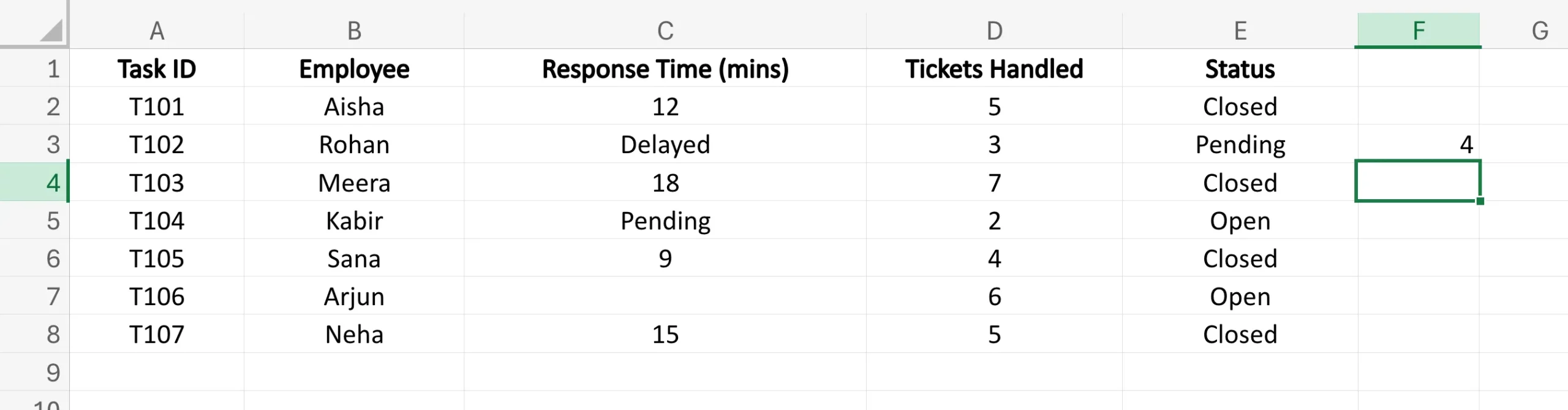
This formula checks all cells from E2 to E8 and only counts those that contain the word Closed. Based on the table, the answer comes out to be 4.
Now let’s say we want to count the number of employees who have exactly 5 tickets. If so, we can write:
=COUNTIF(D2:D8, 5)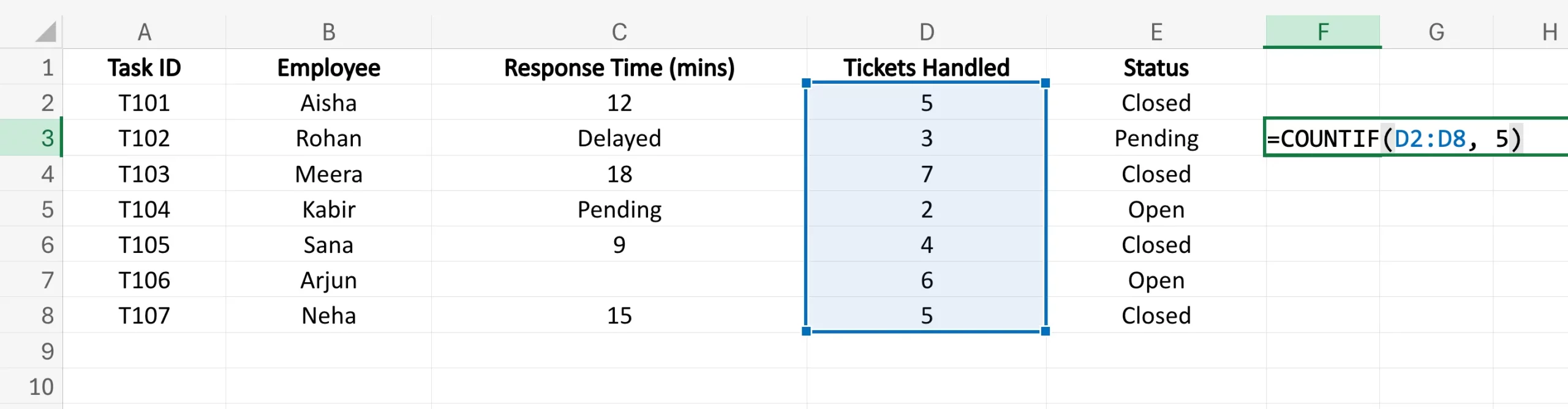
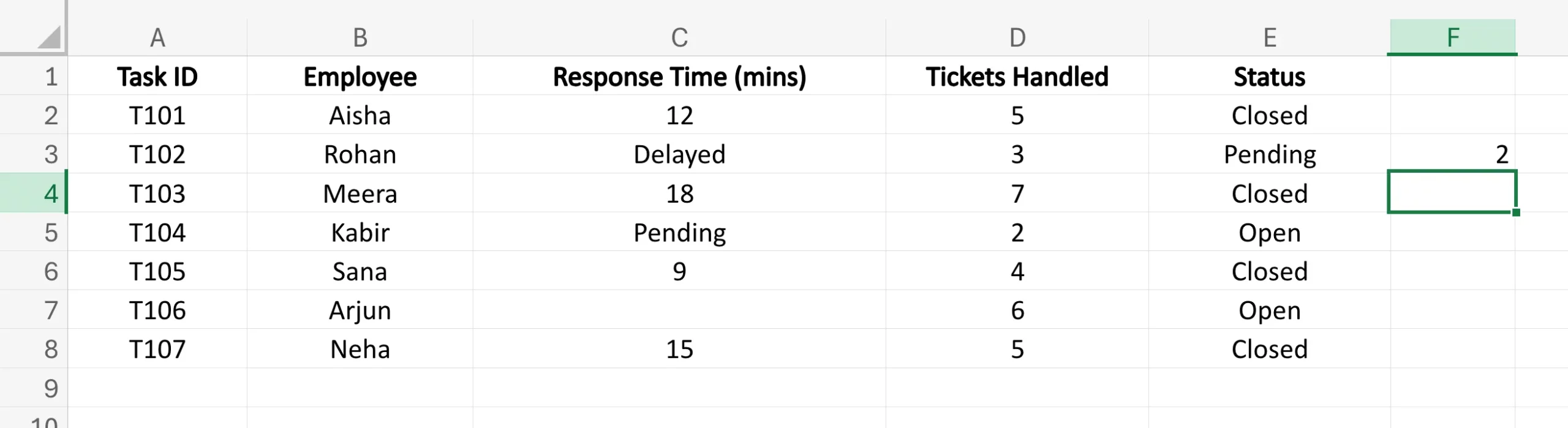
This scans the Held Tickets column and returns the number of cells that contain the value 5. In our table, the answer is 2.
Things become even more useful when numbers are relevant.
Let’s say we want to know how many employees have a response time of more than 10 minutes. We can write:
=COUNTIF(C2:C8, ">10")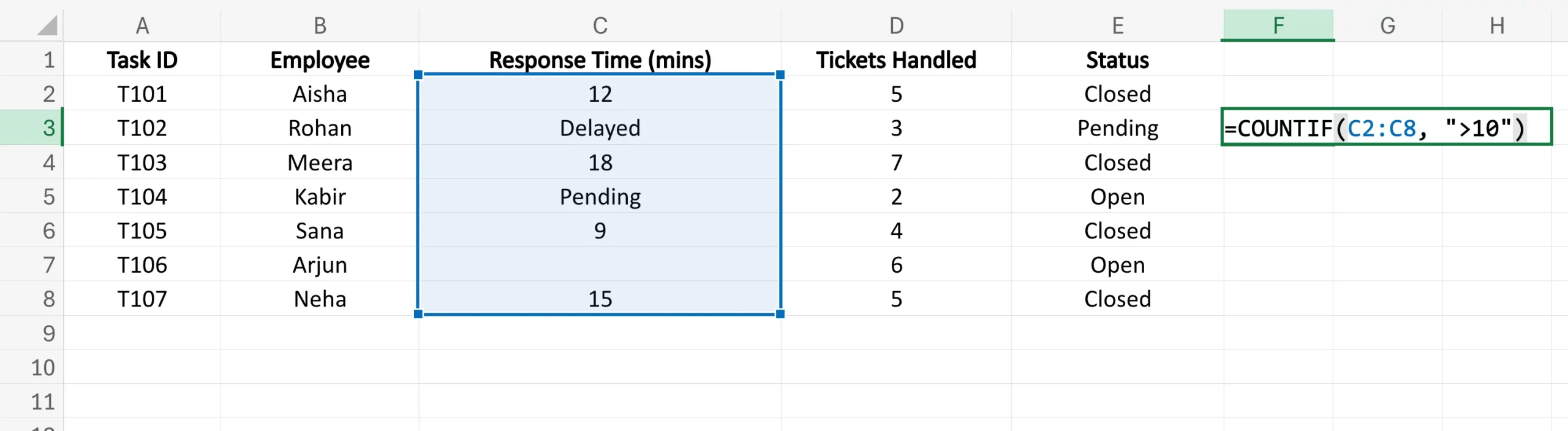
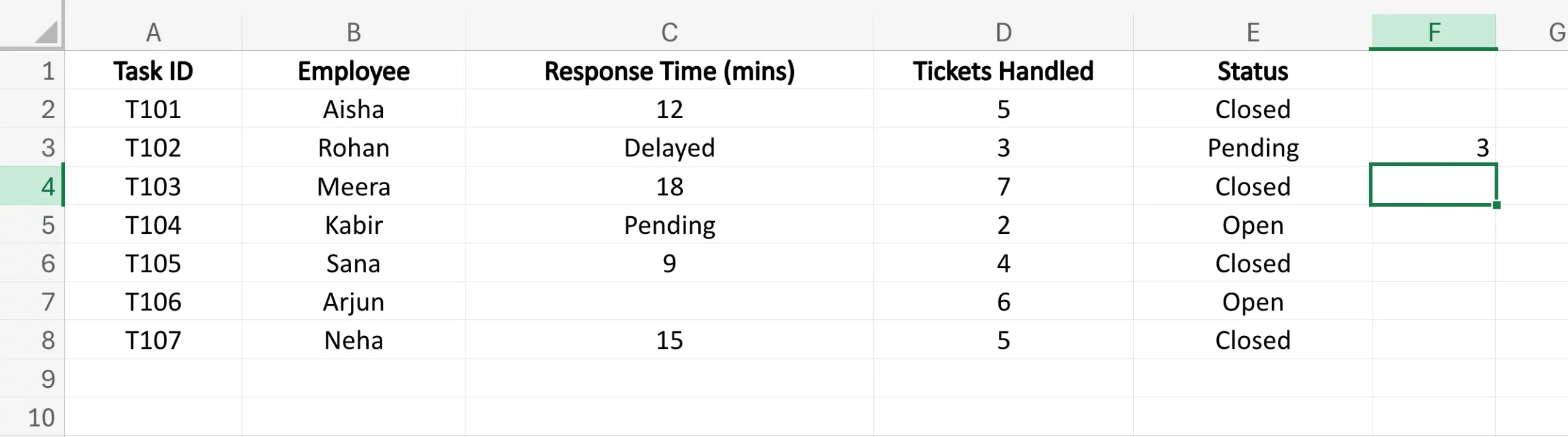
This formula checks the values in the Response Time column and only counts those greater than 10. The result here is 3.
One thing to be careful about: when using operators like ->,<, >=, or <=, every condition must be enclosed within quotation marks. Excel loves rules, and this is one of them.
So yes, COUNTIF is actually what you use when you want to count with an attached filter. That’s also what makes it one of the most powerful Excel functions out there.
Although this is not the highest performance offered by Excel. What if you want to see entries that meet not one but two or more criteria? Enter COUNTIFS
Also read: Microsoft Excel for Data Analysis
What is the COUNTIFS Function in Excel?
You can take it from the name – its COUNTIF with an “s” at the end – which means quantity. COUNTIFS is used when you want to count the number of cells or rows that satisfy multiple conditions at once.
In other words, if COUNTIF works with one rule, COUNTIFS works with two, three, or more. It’s Excel’s way of saying, “Be as specific as you want.”
This makes it especially useful when working with large data sets where one condition is not enough. For example, you may not only want to count employees with Closed status, but especially those who are Closed and have more than 4 tickets. This is where COUNTIFS becomes more practical than COUNTIF.
COUNTIFS Syntax
The syntax here looks a bit long, but the logic repeats:
=COUNTIFS(criteria_range1, criteria1, criteria_range2, criteria2, ...)This means:
- criteria_range1 is the first range that Excel will check
- criteria1 is the condition of that first range
- criteria_range2 is the second range Excel will check
- criteria2 is the condition of that second range
And so on.
Yes, it looks like one of those annoying formulas if you look at it too long. But once you see it in action, it’s very easy to follow. Excel basically matches each range with a condition and only counts those rows where all the conditions are true.
Writing the COUNTIFS Function
In the sample table above, let’s say we want to know how many employees are marked closed and have more than 4 tickets. We can write:
=COUNTIFS(E2:E8, "Closed", D2:D8, ">4")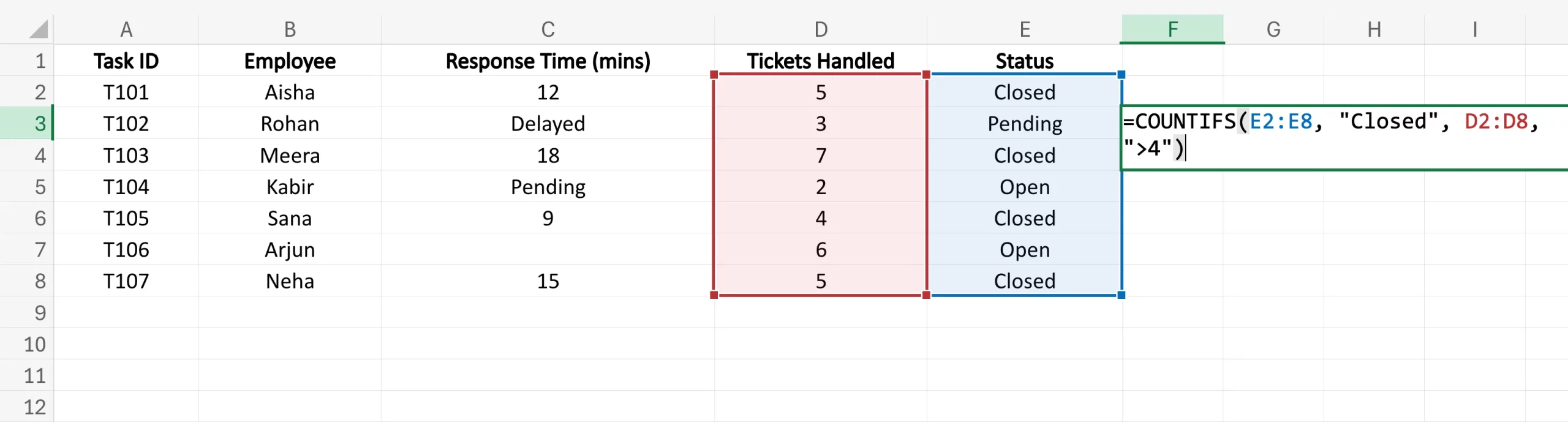
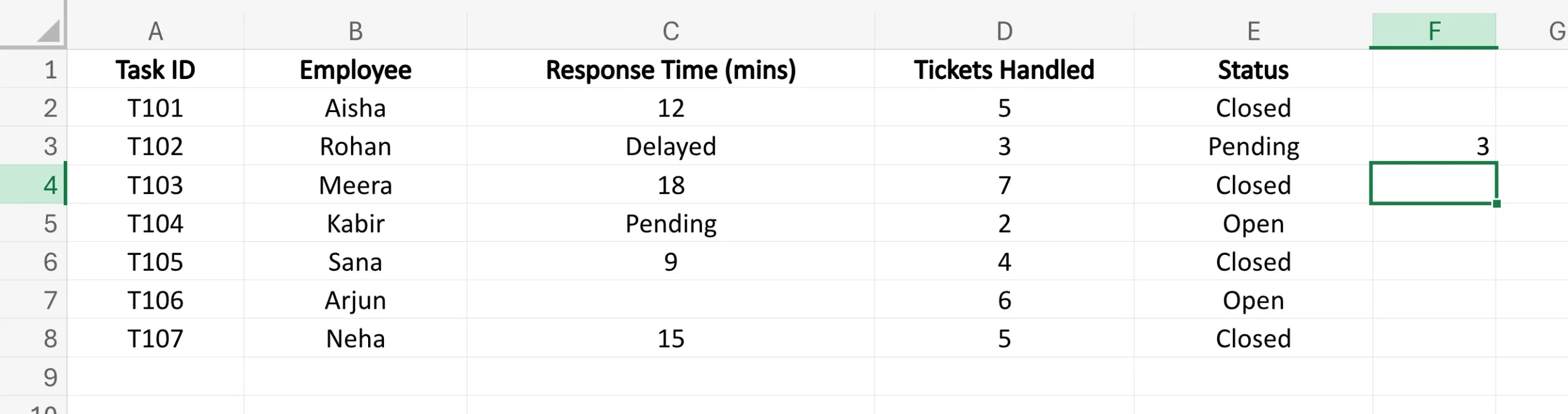
Here’s what happens:
- Excel starts by checking cells E2:E8 for the word Closed
- It then checks the corresponding cells in D2:D8 for values greater than 4
- It counts only those rows where both conditions are satisfied
Based on our table, the answer comes out to be 3.
Let’s try another one.
Let’s say we want to count employees in open status and the response time field is empty. We can write:
=COUNTIFS(E2:E8, "Open", C2:C8, "")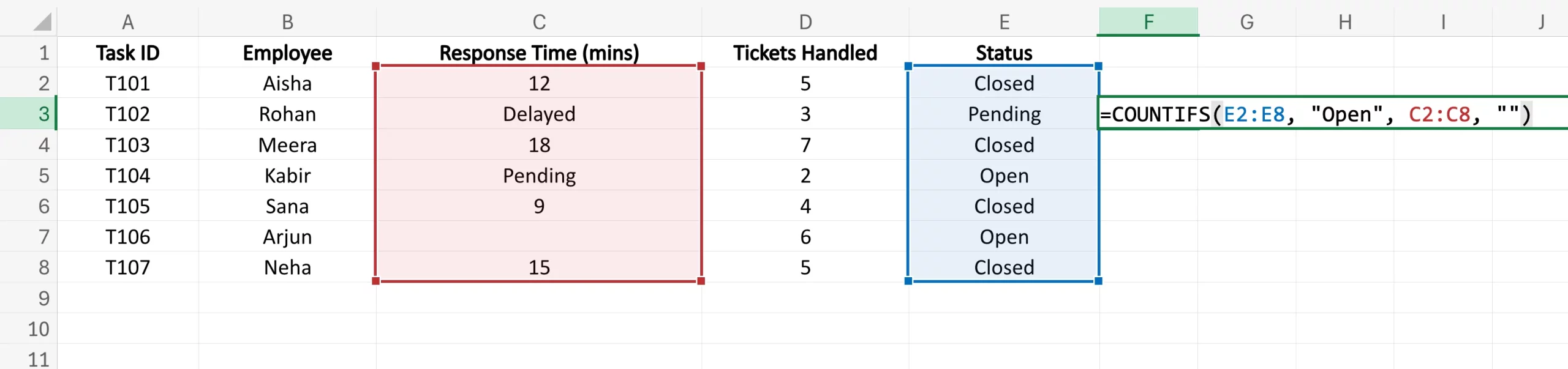
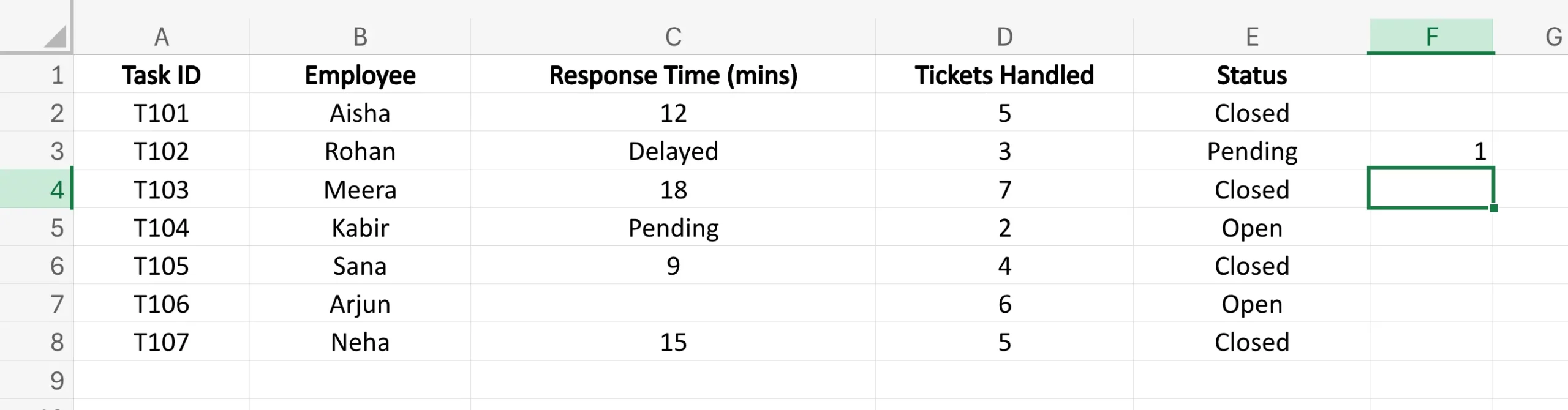
This formula counts the rows when the condition is on and the response time cell is empty. From our sample data, the result comes out to be 1.
That’s the real power of COUNTIFS. Instead of just counting cells with values, it calculates values with context. In short, use COUNTIF if one condition is sufficient. Use COUNTIFS if your data needs further investigation.
This also brings us to other functions within the COUNT family that come in handy in certain situations. These are: COUNTA and COUNTBLANK
Also read: Best Resources for learning Microsoft Excel
What is the COUNTA Function in Excel?
If COUNT counts only numbered cells, COUNTA does not select. Counts all empty cells in a range.
So whether a cell contains a number, text, logical value, or an error, COUNTA will count it as long as the cell is not empty. In short, if something is sitting inside a cell, COUNTA recognizes it.
This makes it useful if you simply want to know how many filled entries there are in a column, regardless of what type of data they contain.
COUNTA Syntax
The syntax is almost the same as COUNT:
=COUNTA(value1, [value2], [value3], ...)Like COUNT, you can use it for multiple values, ranges, or cell references.
Writing a COUNTA Function
Let’s use the same table again.
Let’s say we want to count how many response times there are on a sheet, whether it’s numbers or text. We can write:
=COUNTA(C2:C8)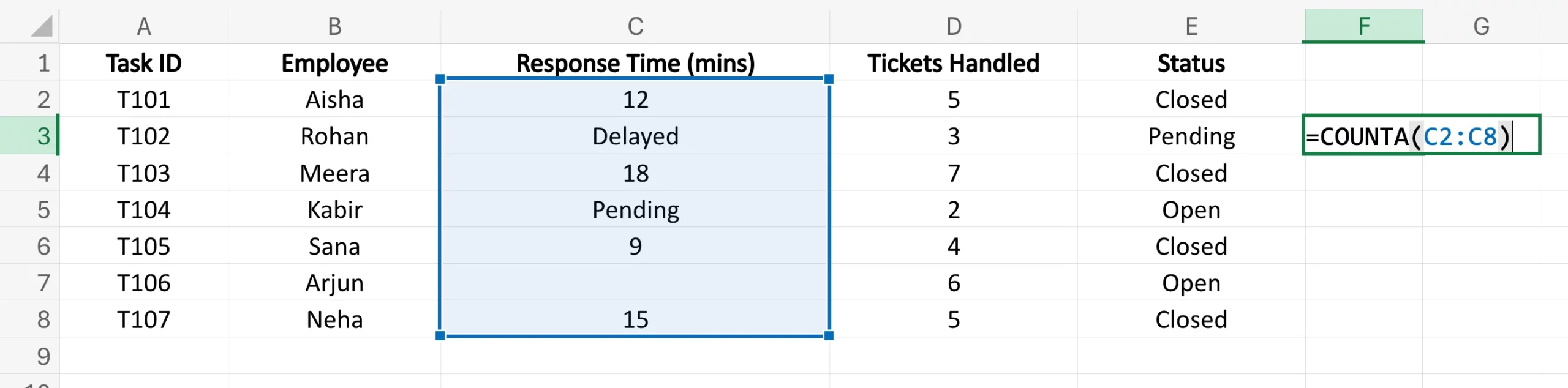
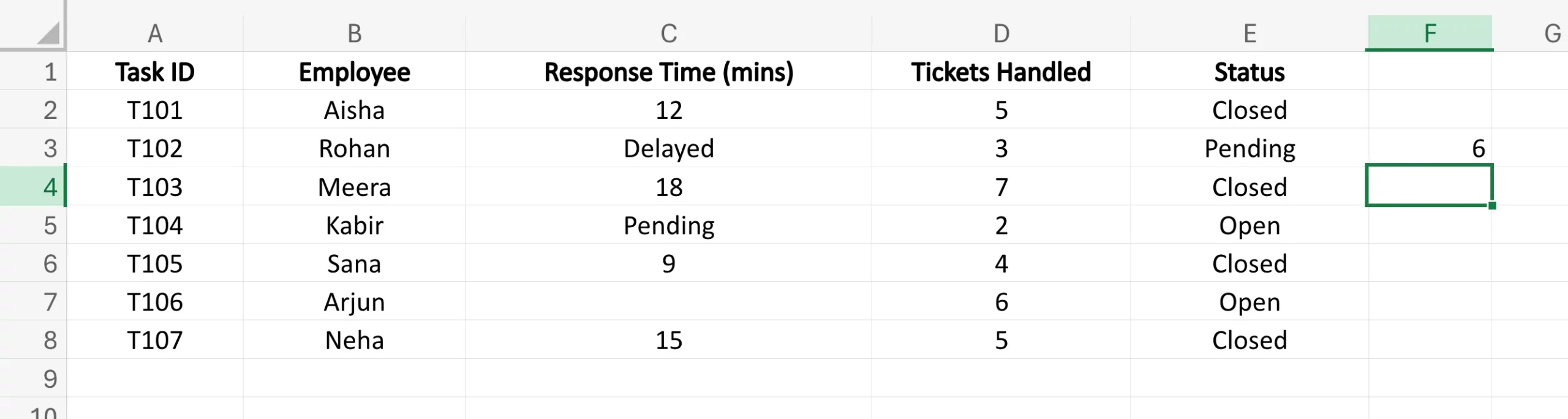
This formula lists all the empty cells from C2 to C8.
Now, unlike COUNT, this function will include:
- numerical values like 12, 18, 9, and 15
- text values such as Delayed and Pending
It will only ignore an empty cell. That’s why the answer here comes out as 6.
So if COUNT selects, COUNTA counts every empty element. A bit judgmental, you might say.
What is the COUNTBLLANK Function in Excel?
Now let’s go to the other side. While COUNTA counts the filled cells, COUNTBLNK counts the empty cells in the given range.
This is especially useful if you are researching data and want to find missing entries. Because, let’s be honest, half the work of a spreadsheet isn’t the analysis. Find out who forgot to fill in what.
COUNTBLANK Syntax
The syntax is even simpler:
=COUNTBLANK(range)Unlike COUNT or COUNTA, this function usually works with a single range argument.
Writing the COUNTBLLANK Function
Using the same table, let’s say we want to find out how many response times are missing. We can write:
=COUNTBLANK(C2:C8)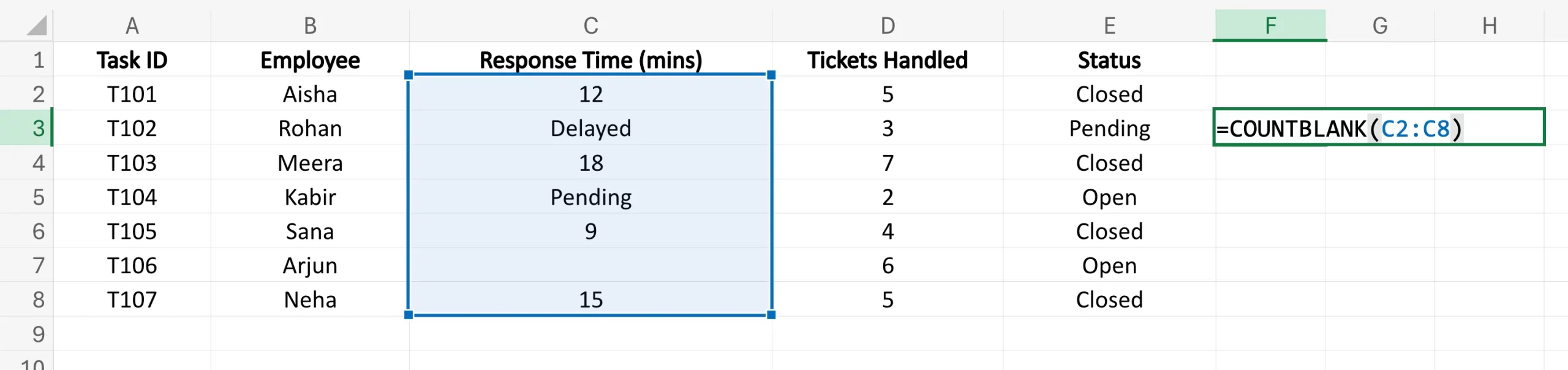
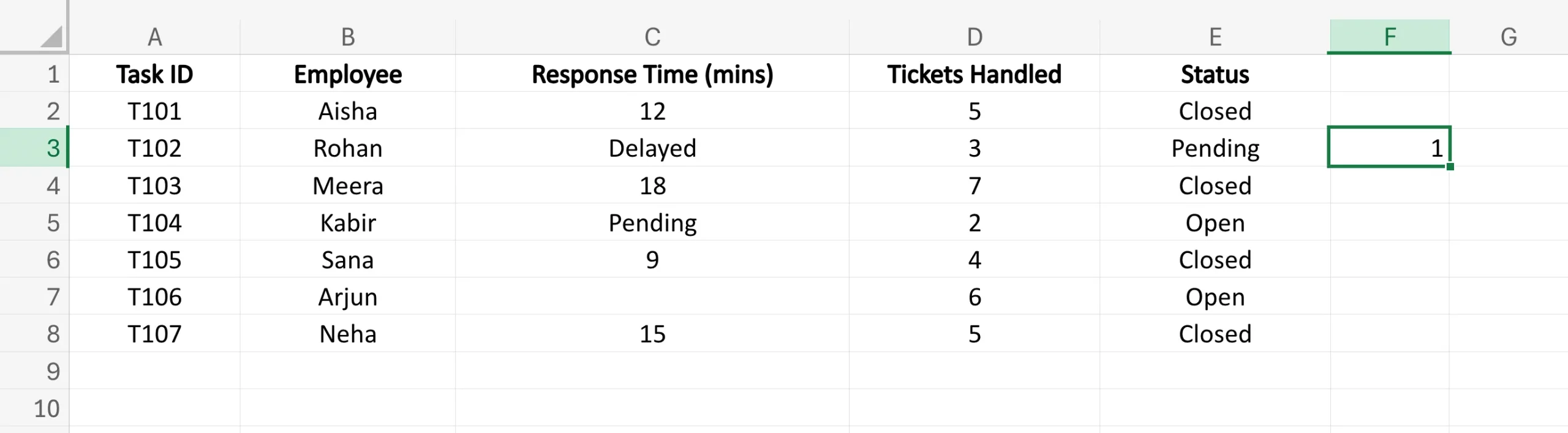
This formula scans cells from C2 to C8 and counts only the blank ones.
In our table, only one response time is entered, so the result comes out to be 1.
That’s the function of COUNTBLLANK in one line: it helps you measure what’s missing, not what’s there.
COUNT Function Family: At a Glance
So, all these COUNT functions divide the function neatly.
- COUNT calculates the number cells
- COUNTA counts empty cells
- COUNTBLANK counts empty cells
- COUNTIF lists cells that meet a certain condition
- COUNTIFS lists cells that meet multiple conditions.
The conclusion
Just as the name suggests, the main function of the COUNT function set is to “count”. The difference lies in what to count. While one function calculates numeric values, others have their own criteria for calculating cells. Ultimately, they all serve the same purpose of giving you a solid number from as large a dataset as you can work with.
I hope this article has made it easier for you to understand all the COUNT functions. We will follow this up with another Excel function soon. Until then, you can share what you’d like to read next by leaving us a comment below. Until then!
Sign in to continue reading and enjoy content curated by experts.