How to Speed Up a Slow Windows PC Without Installing New Software

How to Speed Up a Slow Windows PC Without Installing New Software
A slow Windows PC can make even simple tasks frustrating. Programs may take longer to open, websites can feel sluggish, and switching between windows may become difficult. The good news is that you don’t always need expensive upgrades or third-party software to improve performance.
Windows includes several built-in tools and settings that can help you speed up a slow Windows PC. In this guide, you’ll learn practical steps you can try before spending money on new hardware or optimization software.
Why Does a Windows PC Become Slow?
Several factors can affect computer performance, including:
- Too many programs running at startup
- Limited free storage space
- Too many background processes
- Outdated Windows or device drivers
- Temporary files and cached data
- Too many browser tabs and extensions
- Insufficient RAM
- An aging hard drive
You don’t necessarily need to fix everything at once. Start with the simplest methods and check whether performance improves.
1. Restart Your Computer
It sounds basic, but restarting Windows can resolve many temporary performance problems.
When your PC runs for a long time, background processes and applications can consume memory and system resources. A restart closes these processes and gives Windows a fresh session.
If you haven’t restarted your computer recently, try this first.
2. Disable Unnecessary Startup Programs
Many applications automatically launch when Windows starts. Some of them may continue running in the background even when you aren’t using them.
To manage startup applications:
- Press Ctrl + Shift + Esc to open Task Manager.
- Select Startup apps.
- Review the listed applications.
- Look at their startup impact.
- Disable programs you don’t need immediately after Windows starts.
Avoid disabling Windows system components or programs you don’t recognize. If you’re unsure about an application, search for its name before changing its startup setting.
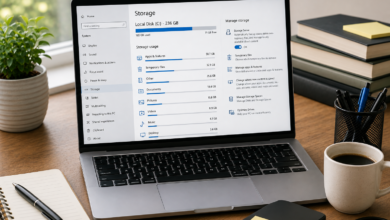
3. Free Up Disk Space
A nearly full system drive can contribute to performance problems and make it harder for Windows to work efficiently.
Windows has a built-in storage management feature that can help remove unnecessary files.
Go to:
Settings → System → Storage
Review categories such as temporary files and other unnecessary data. Remove files you no longer need, but check the contents carefully before deleting anything.
You can also move large personal files such as videos, photos, and old downloads to another drive or external storage.
4. Remove Programs You Don’t Use
Unused applications take up storage space and some may run background services.
To uninstall unnecessary software:
Settings → Apps → Installed apps
Review the applications installed on your computer and remove programs you no longer use.
Be careful with drivers, system utilities, security software, and applications you don’t recognize.
5. Check Which Programs Are Using the Most Resources
Task Manager can help you identify applications that are consuming excessive CPU, memory, disk, or network resources.
Press:
Ctrl + Shift + Esc
Then check the Processes section.
If one application is consistently using a large amount of CPU or memory, investigate it before ending the process. Some high-resource processes are normal Windows operations.
This is particularly useful when your computer suddenly becomes slow.
6. Reduce Unnecessary Browser Tabs and Extensions
Your web browser can consume significant memory, especially when you have many tabs open.
If your PC has limited RAM, try closing tabs that you aren’t currently using.
You should also review your browser extensions. Remove extensions that you no longer need because some can consume resources or run background processes.
Keeping your browser organized can make everyday web browsing noticeably smoother.
7. Keep Windows Updated
Windows updates can include security improvements, bug fixes, and performance-related changes.
Open:
Settings → Windows Update
Check for available updates and install them when appropriate.
It’s also worth checking whether your computer manufacturer provides updated drivers for important hardware components.
8. Use Windows Security Instead of Installing Multiple Security Programs
Installing several security programs can sometimes create additional background processes and consume system resources.
Windows includes built-in security features that provide protection for many users.
Open Windows Security and run a security scan if you suspect malware or unusual activity.
If your computer has suddenly become extremely slow, crashes frequently, or displays unusual pop-ups, malware should be considered as one possible cause.
9. Adjust Visual Effects
Windows includes animations and visual effects that can make the interface look smoother, but older computers may benefit from reducing them.
Search Windows for:
Adjust the appearance and performance of Windows
Then choose settings that prioritize performance.
You don’t necessarily have to disable every visual effect. Experiment with the settings and keep the appearance features you prefer.
10. Clean Up Your Downloads Folder
The Downloads folder can become surprisingly large over time.
Open your Downloads folder and look for:
- Old installers
- Duplicate files
- Large videos
- Documents you no longer need
- Compressed files
- Files downloaded temporarily
Delete unnecessary items or move important files to another storage location.
11. Check Your Available RAM
If your computer frequently becomes slow when several programs are open, limited RAM may be the problem.
You can check memory usage through:
Task Manager → Performance → Memory
If memory usage regularly approaches its maximum capacity, closing unnecessary applications can help.
However, if the computer consistently struggles with modern software because of limited RAM, a hardware upgrade may eventually provide a bigger improvement than software optimization.
12. Consider the Type of Storage Drive
The storage drive can have a major effect on how quickly Windows starts and applications open.
Older computers may use traditional hard disk drives (HDDs), while newer systems commonly use solid-state drives (SSDs).
If your PC still uses an HDD, upgrading to an SSD can provide a significant improvement in startup times and application responsiveness.
This is a hardware upgrade rather than a software solution, so try the free Windows optimizations first.
What You Should Avoid
When trying to improve Windows performance, be careful with programs that promise to make your computer dramatically faster with one click.
Avoid installing multiple “PC cleaner,” “RAM booster,” or registry-cleaning applications without understanding what they do. Some provide little benefit and may add additional background processes.
Windows’ built-in tools are often enough for basic maintenance.
Final Thoughts
If your Windows PC has become slow, you don’t need to immediately buy new hardware or install optimization software. Start by restarting the computer, disabling unnecessary startup applications, freeing storage space, removing unused programs, checking Task Manager, and keeping Windows updated.
These simple steps can help speed up a slow Windows PC and make everyday tasks more responsive.
If your computer remains slow after basic optimization, the underlying issue may be limited RAM, an aging storage drive, overheating, or older hardware. In that situation, upgrading the hardware may provide a more noticeable improvement.